

Dashboard
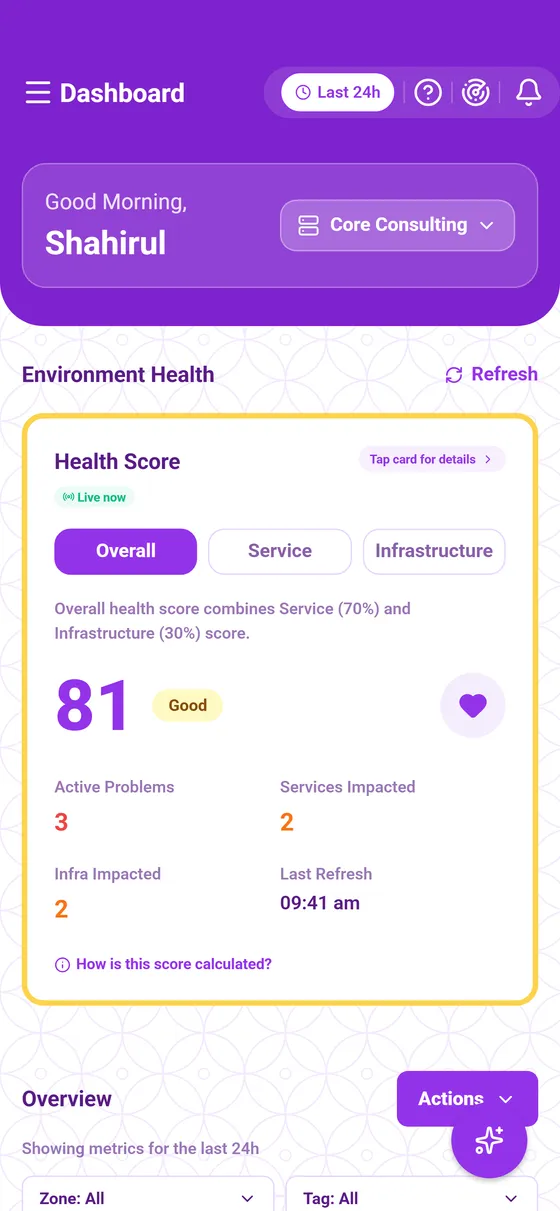
The Curade Mini dashboard, with the widgets you pin and edit, who sees them, the environment health score, the filters and each widget's sheet.
On this page
Dashboard shows one health score and the widgets you pin for the environment you picked, all over the time window at the top right of the screen. Engineers and Admins both open it, and the app opens on it.

Widgets
A widget shows one metric. Each environment keeps its own set, and a new one arrives with a starter set for your role.
- Actions at the top of the page opens Add Widget and Edit Widgets.
- Widgets come in five categories: Problems, Services, Infrastructure, User Experience and Application. An Admin is offered problem widgets only, since problems are what an Admin opens.
- A metric badged Has details opens a sheet when you tap its card, and one badged Already added is on your dashboard already.
A widget's title follows its metric until you type your own, and a title still following its metric changes language with the app.
Editing a dashboard
Edit Widgets puts the dashboard in edit mode. There you tap a widget to change its metric or its title, and press and hold one to drag it to a new place within its group. Save keeps the changes, and nothing is written until you save. Customise your dashboard walks through it.
Who sees a dashboard
Your dashboard is yours alone: nobody else sees your widgets, and changing them never touches anyone else's dashboard.
The health card
The card at the top gives the environment's health score, with tabs for the overall score, the service score and the infrastructure score. Tap it to open the breakdown of the problems behind the score. The score always reads the whole environment's problems open right now, whatever the time window and the filters below say (Health score).
Filters
Zone: All and Tag: All above the widgets narrow every widget at once to a management zone or a tag, so the figures on screen stay consistent with each other. Picking a zone narrows the tags on offer to the ones that still apply. The filters last while the dashboard is open, and the health card above them ignores them.
A widget's sheet
A card marked Tap for details opens a sheet with the rows behind the number. At its top, What drives this number says how the number is made and what pushes it, worked out by Cluemetry for the widget's own window and scope: the hosts or services reading highest and lowest, or the root causes most of its problems trace back to.
A reading at its floor is written out in words. A green line starting "All good" means the widget counts bad things and found none. A grey No reading in this window means nothing in scope reported the measure at all, which is neither good news nor bad.
Live widgets
Service Health Split and Unhealthy Hosts count what your monitoring platform marks unhealthy right now, and badge themselves Live now. The Services and Infrastructure pages grade over your time window instead, so a service counted unhealthy here can open with a healthy grade on its own page. The two answer different questions: what to act on this minute, and how something did over the window.
Opened from an alert
A dashboard monitoring alert opens the dashboard with a From your alert banner above the health card, saying what the alert said and when. When a later alert from the same rule has come since, the banner marks it Out of date and quotes the newer one.
This page describes Curade Mini 1.0.0.