

Share and export
Share a CLEO chat, a problem, an application, a service or a host from Curade Mini, and export CLEO's answers and your alerts as files.
On this page
What you see in Curade Mini reaches other people in two ways: you share it with them through your phone's share sheet or a chat's visibility, or you export it as a file. What you can share or export follows what your role lets you open.


Sharing
| Page | What it shares |
|---|---|
| CLEO | Change Visibility makes a chat Public or Read Only, which shares it with the environment (CLEO) |
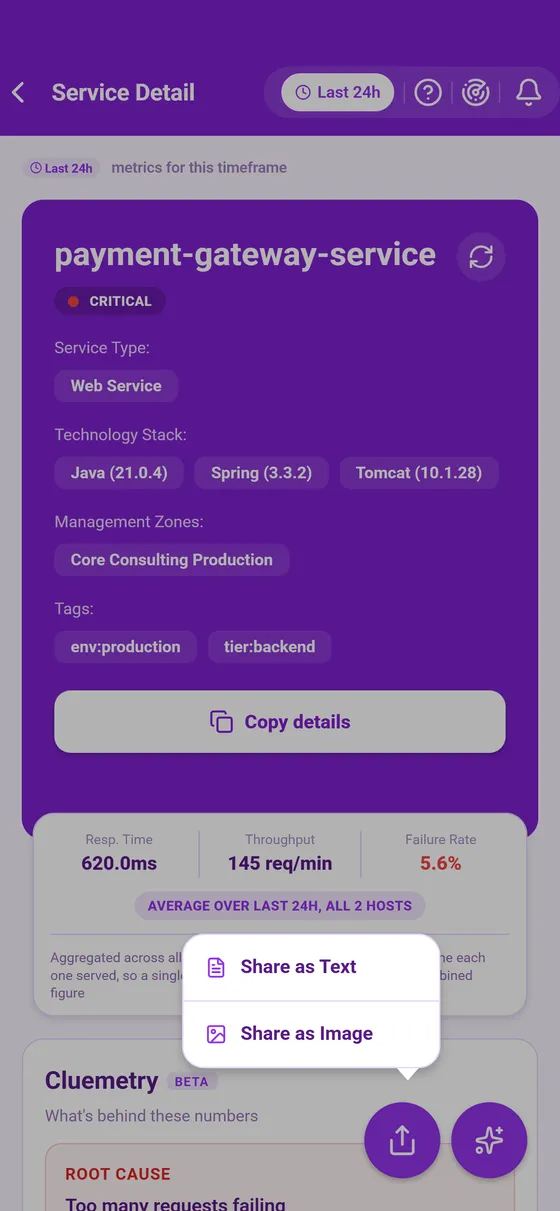
| Application, service or host | Share as Text, a summary of the page, or Share as Image, a picture of it |
| Problem | A summary of the problem as text, shared straight away |
A detail page's share button sits at its bottom right. Your phone's share sheet then opens, so the page can go to email, a chat, your files or anywhere else your phone offers.
Exporting
Each export saves what a page holds to a file and opens your phone's share sheet, so the file can go to your files, an email or a chat.
| Page | Formats |
|---|---|
| An answer in CLEO | PDF for the answer, CSV for a table it draws with Export CSV, and a file for code it writes with Export Code |
| Monitoring | JSON for your custom alerts, with Export and Export all (Monitoring alerts) |
In a PDF, an interval with no reading reads as no reading rather than a zero.
What gets captured
A share or an export holds the page as it stands when you make it: the environment, the time window and any filters. Whoever opens it later sees what was on screen when you made it, not live data, so say which time window it covers when you send it on.
Copying the details
Copy details, the full width button at the foot of a detail page's header card, puts the page's details on the clipboard as text. It turns into Copied for a moment. That is the quicker route when the details are going into a ticket or a chat message.
This page describes Curade Mini 1.0.0.